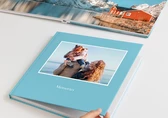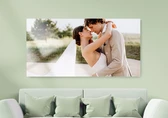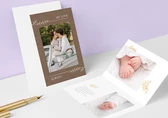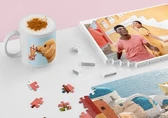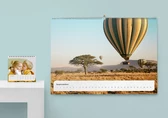
The App Designer allows you to create and personalize a variety of photo products, including Photo Books, Cards, Calendars, Wall Art, and custom Fine Art. You can customize your product with multiple images, cliparts, backgrounds, text, and fill boxes according to your preferences.
The design interface will vary depending on the product selected, and the method to access Edit Design mode will differ accordingly:

Once in edit design mode, several buttons will appear at the bottom, such as Layouts, Background, Text, Image, Cliparts, Fill box, and QR Code. By tapping on any of them, the corresponding tools will be displayed for you to design your photo product.
Note that when you are in the Edit mode of a page or photo product, you can zoom in or out by holding and dragging with two fingers on the workspace

To exit the Edit design mode, tap on Save to save your changes or Cancel to return to the photo product without saving the changes.
The product name is displayed at the top, with buttons on either side. In the top left corner, an arrow button takes you back to the Projects folder. In the top right corner, a three-dot button opens a menu with the following options:
At the bottom you’ll find the Add to cart button, which allows you to add the designed product to your basket when you’re finished.

Get exclusive discounts and designing tips! By signing up, you acknowledge our Privacy Policy. You can unsubscribe at any moment.





 Change your country